Verbaico

Live Meeting Translation, Without a Bot

Verbaico translates an online meeting for you while it happens, in any of more than 120 languages. It works next to the meeting, not inside it: no bot joins the call, the host doesn't have to allow anything, and the other people install nothing. It works the same way whether the meeting runs on Zoom, Teams, Google Meet or another platform.

Verbaico — Weekly team meeting (browser tab)English → Español

Listening…

Let's start with the numbers from last week.Empecemos con las cifras de la semana pasada.
Sales in Germany are up about twelve percent.Las ventas en Alemania han subido alrededor de un doce por ciento.
Maria, could you walk us through the plan for next month?María, ¿podrías explicarnos el plan para el mes que viene?

How it works

  1. Join your meeting as usual

    On a computer, open the meeting in Chrome or Edge, in the browser rather than the desktop app. Open Verbaico in another tab.

  2. Choose the languages and Browser tab

    Pick the language being spoken and the one you want to read, set Audio from to Browser tab, press Start and share the meeting's tab with its audio.

  3. Read along, keep the text

    The translation appears as people speak. Afterwards the transcript is in your history, to copy or download as text or subtitles.

Browser tab or microphone: which one to use

Verbaico can listen in two ways. The browser tab takes the sound straight from a meeting or video playing in your browser; the microphone hears whatever is said in the room. Choose by where the voices you want to follow come from.

Browser tab

The sound of one browser tab, taken directly, with no microphone in between. On a computer, in Chrome or Edge.

Best for

  • Online meetings opened in the browser: Zoom, Teams or Google Meet on the web
  • Webinars, online classes and live streams
  • Videos, such as a talk or a lecture recording
  • Following a meeting with headphones on, so nobody around you hears it

Good to know

  • The clearest sound: no room noise or echo, and the volume doesn't matter
  • It hears the other people in the call, not you: your own voice goes to the meeting, not to the tab
  • Only a tab works: when sharing, choose the tab (not a window or the whole screen) and turn on sharing its audio
  • Not on phones or tablets, and not for meeting desktop apps: open the meeting in the browser instead

Microphone

Whatever your device's microphone hears. On a phone, tablet or computer.

Best for

  • People in the same room: a meeting, a lesson, a talk or a service
  • Face-to-face conversations (the Conversation page lets two people take turns)
  • Meetings in a desktop app, by letting the microphone hear the call through your speakers
  • Anywhere a computer isn't at hand, with just a phone

Good to know

  • It hears everyone near the device, you included
  • Keep the device close to whoever speaks; noise, distance and echo lower the quality
  • With headphones the microphone can't hear the call: use the browser tab for that

Features

No bot in the call

Nothing joins the meeting and nobody sees an extra participant. Verbaico listens to your own browser tab.

No host or admin settings

You don't need the organiser to turn on captions or translation, or your company to install an add-on.

Any meeting platform

Zoom, Teams, Google Meet or any other service that runs in the browser: Verbaico works the same way with all of them.

120+ languages

Read the meeting in more than 120 languages, from more than 80 spoken languages and accents, including many that built-in captions leave out.

Only you see it

The translation is on your screen alone, in your language, while the meeting carries on as usual for everyone else.

A record afterwards

The transcript of every session is saved. Copy it, or download it bilingual, as the original or as the translation, as text or SRT subtitles.

Where it helps

International teams

Follow colleagues who speak another language in the weekly meeting, and keep a bilingual record of what was said.

Customer and partner calls

Understand a call on the customer's platform, where you can't change the settings or add tools.

Webinars and online classes

Follow a webinar, a course or a conference stream given in a language you don't know well.

School and parent meetings online

Follow an online parent-teacher meeting in your own language. Where every word matters, such as medical, legal or official matters, use a qualified interpreter: Verbaico can support one, not replace one.

Frequently asked questions

Does a bot join my meeting?

No. Verbaico doesn't join the call. It listens to the meeting's tab in your own browser, so the other people see nothing new in the meeting.

Does the host have to allow it?

No. Verbaico needs no meeting settings, add-ons or admin approval. Like any tool that writes down or translates a conversation, use it in line with your workplace's rules and tell people when that is expected.

Which meeting platforms does it work with?

Any platform whose meeting you can open in a browser tab, such as Zoom, Teams and Google Meet on the web. Verbaico doesn't depend on the platform; it only hears the tab's sound.

Can I use the Zoom or Teams desktop app?

Not through the browser tab, which only hears tabs. Open the meeting in the browser instead, or let the microphone hear your speakers, which works but is less clear.

Will my own voice be translated?

Not with the browser tab: it hears the other people in the call. To translate what is said in the room, you included, use the microphone.

Which browsers work?

For the browser tab, Chrome or Edge on a computer. The microphone works in any current browser, also on phones and tablets.

Is the meeting recorded?

No audio is stored. The text is kept in your history so you can read it later; the privacy policy explains how long, and how to have it erased.

How much does it cost?

New users get 30 free minutes, with no credit card. After that, buy a pack of minutes that never expires, or choose a monthly plan.

No text appears when I use the microphone. What can I do?

Check that the right microphone is chosen as the input in your computer's sound settings and that it isn't muted, that the browser is allowed to use it (on a Mac: System Settings → Privacy & Security → Microphone), and that the spoken language you chose is the one being spoken. On Windows, some computers also process the microphone's sound with audio enhancements, which can stop speech from reaching Verbaico: open Settings → System → Sound, choose your microphone under Input, and set Audio enhancements to Off. Then reload the Verbaico page and start again.
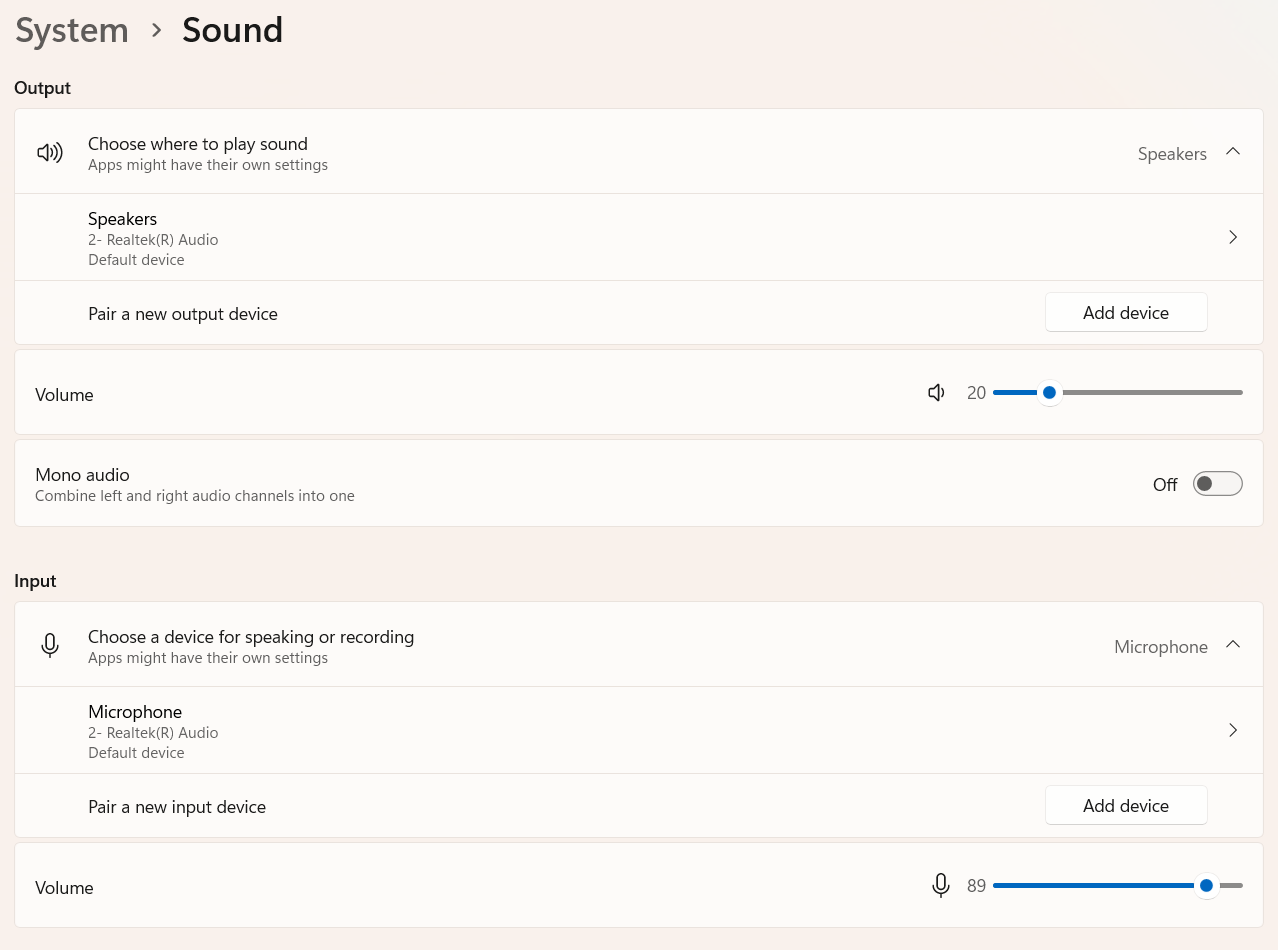
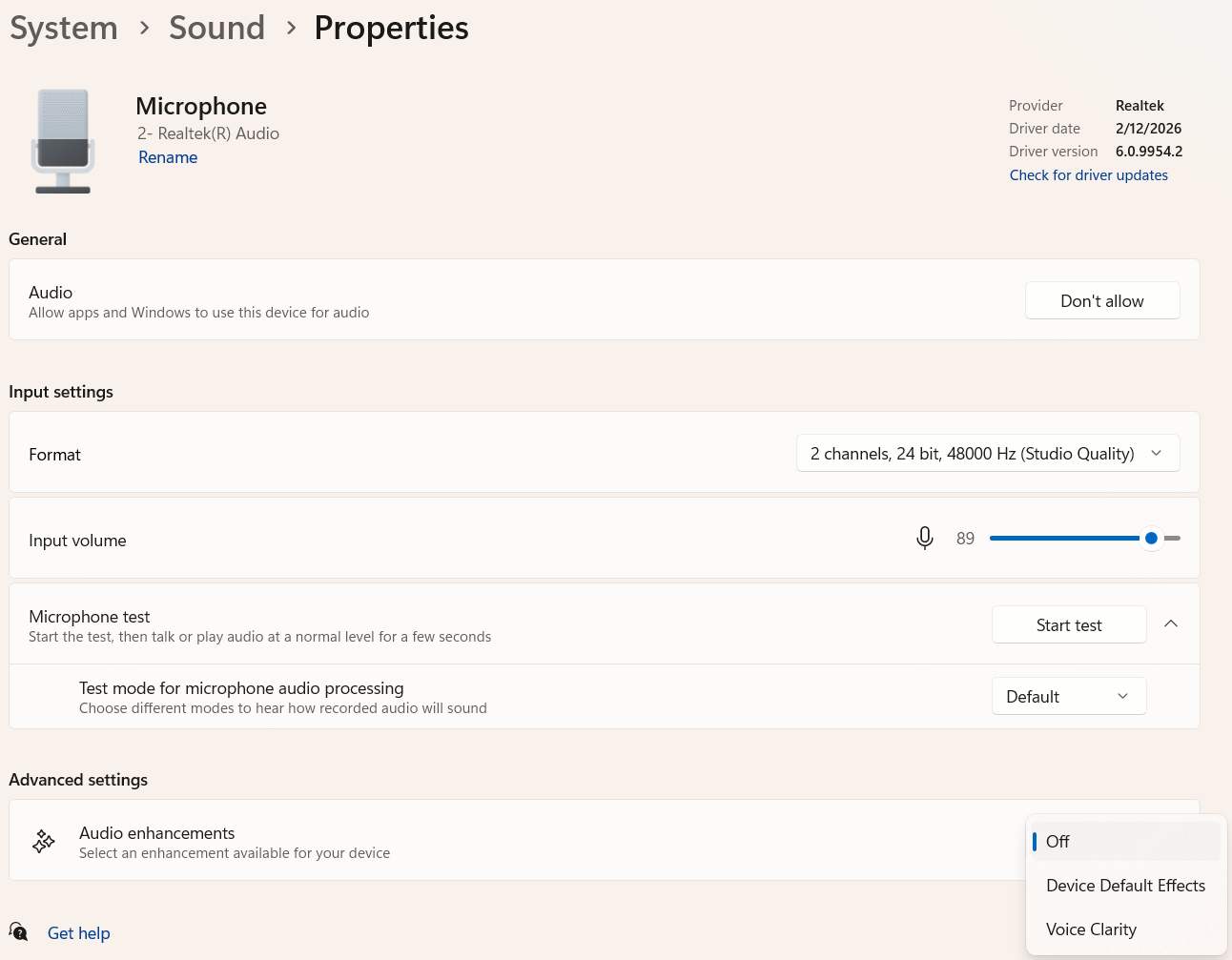
Windows sound settings with the microphone under InputThe microphone's properties in Windows with Audio enhancements set to Off

Try it now

New users get 30 free minutes. No credit card needed.

Try 30 minutes free